
You will receive a dashboard notification when an Activity is available for personal reflection.
This means your activity has begun to receive student responses.
- Click the dashboard notification to display the Activity Reflection.
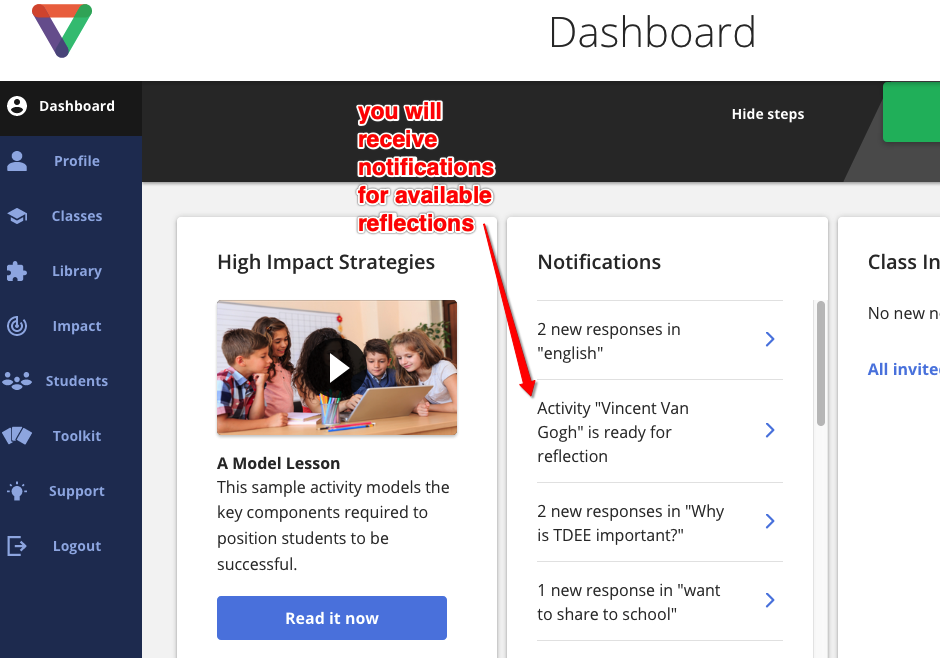
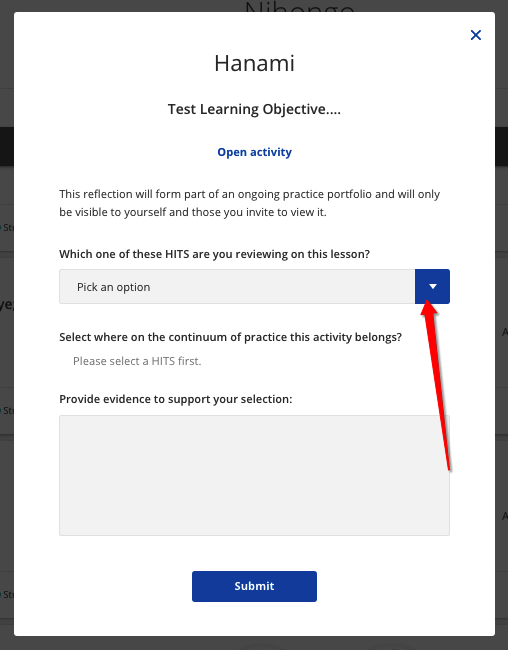
Alternatively, you can access the reflection by the Class statistics tab, then clicking the "Impact Reflection" link under the desired activity. - When the Reflection is displayed, you will be required to first select a HITS from the drop down list.
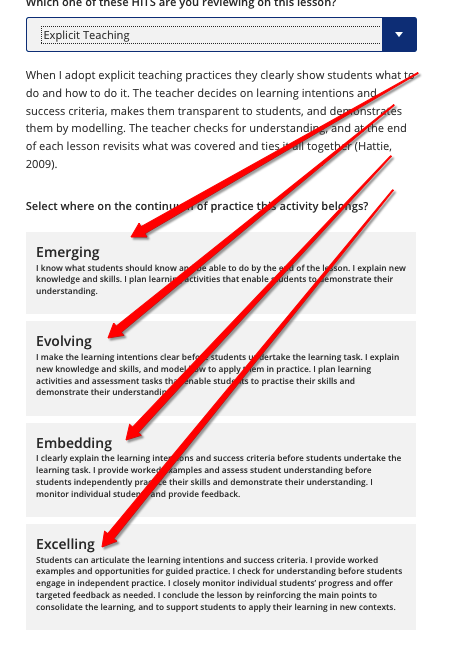
- Once the strategy has been selected, you may then choose one from the 4 options for the continuum of practice.
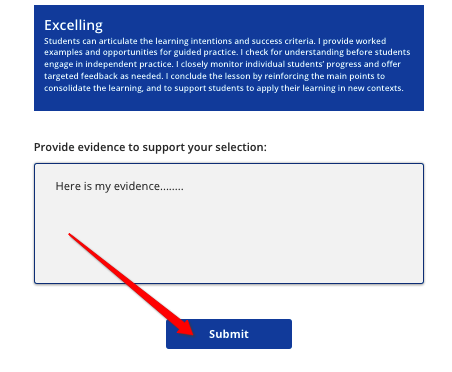
- Once this has been selected, you may type in your evidence, and click the "Submit" button when done.
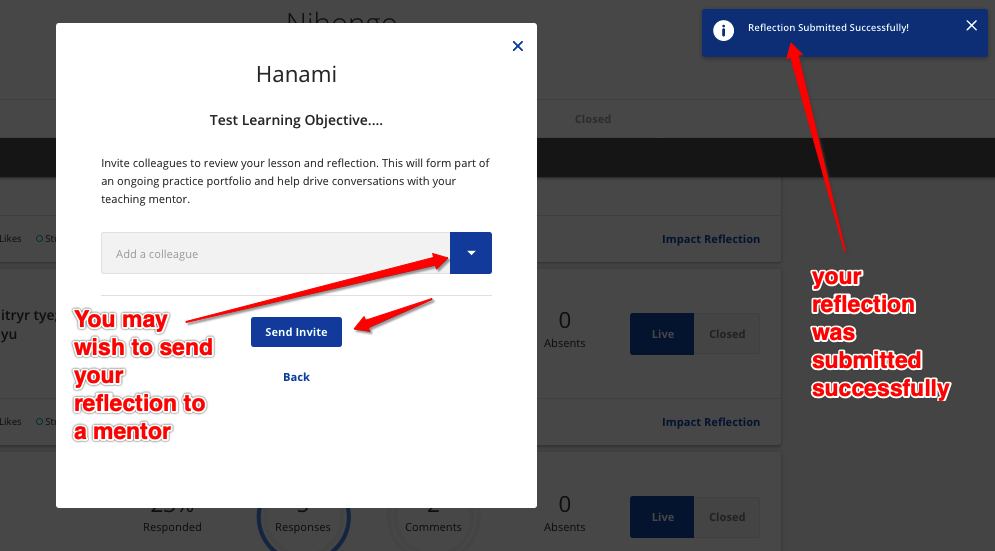
- Your activity Reflection is now complete. A notification will briefly display to confirm it was submitted successfully. You will also see a new option displayed if you wish to now share your reflection with a mentor. This step is optional and may be completed at a later time if desired.
If you have any questions, or require further assistance, please click here to create a support ticket.
Comments
0 comments
Article is closed for comments.